Thursday, 1 March 2018

How to Handle Windows in Selenium

Many times we need to handle more than one windows in testing. It is due to many application has multiple windows. Handling more than one windows in selenium is very easy. We can handle each window with unique id of that window.

Selenium webdriver assign one unique alphanumeric id to each window as soon as web driver object is initiated. When we need to switch from base window to other window than we can switch to that wind using ID of that window.

GetWindowHandle

String vWindowHandle = driver.getWindowHandle();

Use : To get Window handle (Unique ID) of current window


GetWindowHandles

Set<String> vWindowHandles = driver.getWindowHandles();

Use : To get window handles of all windows.


We can use above to commands for switch to different window.

How to Switch to different windows?

Lets assume that current you have total three windows open and you want to switch to last window. 


String vBaseWindowHandle = driver.getWindowHandle();
Set<String> vWindowHandles = driver.getWindowHandles();
  
for(String temp : vWindowHandles)
{
 driver.switchTo().window(temp);
}
  
// Code for second window
  
driver.close();
driver.switchTo().window(vBaseWindowHandle);


Switch To Frame


Many application has multiple frame and when we do some operation on application then other frames will visible. For this scenario we need to switch that frame if we want to do some operations on that frame.

We can switch to frame with below command.


driver.switchTo().frame("name of frame");


Other type windows like pop up and alert also exists in many applications.

Please visit below post for how to handle pop up in selenium.

How to Handle PopUp in Selenium

Please add comment if you have any question.

How to Handle PopUp in Selenium

Many application has some pop up for display some success or failure message to user. We need to handle that types of pop up in script.

There are three types of pop Up.
  1. Web based pop up
  2. Alert message
  3. Window based pop up
How to handle web based Pop Up

Web based pop up can be handle using WindowHandle or SwitchToFrame command. First we need to identify type of pop up. 
If pop up is other window than we need to use WindowHandle command.
If pop up is just frame than we need to use SwitchToFrame command.

Using WindowHandle

  String vBaseWindowHande = driver.getWindowHandle();
  Set<String> vWindowHandles = driver.getWindowHandles();
  
  for(String temp : vWindowHandles)
  {
   driver.switchTo().window(temp);
  }
  
  // Code for Popup
  
  driver.close();
  driver.switchTo().window(vBaseWindowHande);

Using SwitchToFrame

  String vBaseWindowHande = driver.getWindowHandle();
  driver.switchTo().frame("Name of Frame");
  
  // Code for popup
  
  driver.switchTo().window(vBaseWindowHande);


How to handle Alert Message

Po pup type is alert then we have to use Alert class for handle alert.

you can use object of alert class for different operations on alert like accept, dismiss, get alert text etc.


  Alert alert = driver.switchTo().alert();
  alert.accept();
  alert.dismiss();
  String vAlertText = alert.getText();


How to handle Windows based pop up


Selenium can not handle window bases pop up. Selenium only handle things which are based on web. There are many ways to handle window based pop up.
We can use AutoIT third party tool or Robot Framework for handle window based pop up.

Please visit below post for how to handle windows based pop up (dialog box) using AutoIT.

How to Automate Non Browser Based Functionality with Selenium + AutoIT


How to Automate Non Browser Based Functionality with Selenium + AutoIT

Selenium can automate only browser based functionality if there is scenario that any non browser based functionality like windows dialog box comes than selenium can not handle. We need to use other tool for handle such scenario.

AutoIT is best open source tool for automate non browser based functionality with selenium. We have to first configure AutoIT with selenium before use.

For configuration part please go to below link and Configure AutoIT.

Configure AutoIT with Selenium

Don't forget to register 'AutoItX3_x64.dll' because it is very important. You can not use that .dll without register.

Once you are done with configuration then create one project for automate calculator.


 public static void main(String[] args) throws InterruptedException
 {  
  String jacobDllVersion;
  if (jvmBitVersion().contains("32"))
  {
   jacobDllVersion = "jacob-1.18-M2-x86.dll";
  }
  else
  {
   jacobDllVersion = "jacob-1.18-M2-x64.dll";
  }
 
  File file = new File("lib",jacobDllVersionToUse);
  System.setProperty(LibraryLoader.JACOB_DLL_PATH, file.getAbsolutePath());
 
  AutoItX autoIT = new AutoItX();
  autoIT.run("calc.exe");
  autoIT.winActivate("Calculator");
  autoIT.winWaitActive("Calculator");
  // Do 5 * 5 = 25
  //Enter 5
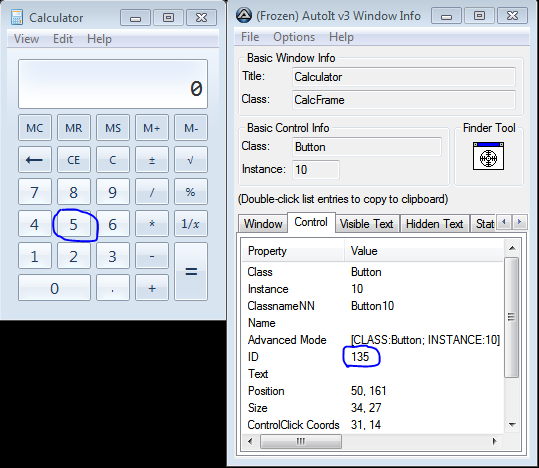
  autoIT.controlClick("Calculator", "", "135") ;
  Thread.sleep(1000);
  //Enter *
  autoIT.controlClick("Calculator", "", "92") ;
  Thread.sleep(1000);
  //Enter 5
  autoIT.controlClick("Calculator", "", "135") ;
  Thread.sleep(1000);
  //Enter =
  autoIT.controlClick("Calculator", "", "121") ;
  Thread.sleep(1000);
  // Get total and verify it should be 25
  String vTotal = autoIT.controlGetText("Calculator", "", "#32770");
  
  if(vTotal.equals("25"))
  {
   System.out.println("Test case Pass.");
  }
  else
  {
   System.out.println("Test case Fail.");
  }
  
 }

To get the Calculator button ids for the number 5 and = I used the Au3info application that is in the install directory of autoit-v3 that you downloaded and extracted.


Please add comment if you have any question.


Wednesday, 28 February 2018

Different Locators in Selenium

Locators is most important part of selenium automation because based on this we are going to find element on tha pgae. So, it locators failed to find element then our script will fail.

sometime locate accurate GUI element on page is very difficult task. Hence, Selenium provide many type of locators and we can use to find GUI element on page.

Below are different type of locators available in selenium.

  • ID
  • Name
  • Link Text
  • DOM
  • CSS Selector
  • Xpath

Locating By ID:

This locator technique is most common way to find element. Please see below image. we can find Google search text box with this.


Syntax:

driver.findElement(By.id("lst-ib"));


Locating By Name:

Locating by Name is same as Locating By ID just we have to use 'Name' attribute of tag instead of 'ID'.


Syntax:

driver.findElement(By.name("q"));


Locating By Link Text:

This technique is used only for finding link element on the page. It can not be used for text area, button or other type of element.


Syntax:

driver.findElement(By.linkText("Selenium - Web Browser Automation"));


Locating By CSS Selector:

CSS Selector is patterns used to find an element with combination of tag, id, class, and attributes. Locating by CSS Selector is more complicated than the other methods. It is very popular when element has no id. we can find element using tag and class.

1. Tag and ID


Syntax:

driver.findElement(By.cssSelector("input#lst-ib"));

# sign use for indicate ID.

2. Tag and Class


Syntax:

driver.findElement(By.cssSelector("input.gsfi"));

. sign use for indicate Class.

3. Tag and Attribute


Syntax:

driver.findElement(By.cssSelector("input[name=q]"));

4. Tag, Class and Attribute


Syntax:

driver.findElement(By.cssSelector("input.gsfi[name=q]"));


Locating By DOM:

The Document Object Model (DOM), is the way in which HTML elements are structured. Selenium is able to use the DOM in accessing page elements. We can use ID, Name for locating element with DOM

1. ID


Syntax:

document.getElementById("lst-ib");

2. Name


Syntax:

document.getElementsByName("q");

If there is multiple elements with same name then selenium will locate first element. If we want to locate second element the we have to use index. Please see below syntax.

document.getElementsByName("q")[2];


Locating By XPath:

Xpath is my favorite locators among all. 
Xpath is used XML for locating elements. Xpath is most common and widely used for locating elements. 


Syntax:

driver.findElement(By.xpath("//input[@id = 'lst-ib']"));

We can use different locators technique simultaneously in one locators.
For ex. If we want to find button which has id = abc and value = xyz then we can do with Xpath.

driver.findElement(By.xpath("//input[(@id = 'abc') and (@value = 'xyz')]"));

You can find xpath of any element with chrome browser easily. Follow below steps for find xpath.

1. Righ click on that element.
2. Click on inspect element
3. Right click on highlighted part
4. Go to Copy Option
5. Click on Copy Xpath and paste it to Notepad


How to Highlight Element in Selenium

When we click on any element in automation script then sometimes script is so fast that we can not recognize that which element is clicked.

So, we can do one thing that before click on any element we can highlight that element then click on that element. So, that we can recognize that which element is clicked.

We can not directly highlight element using selenium. We need to use Java script for highlight that element. If we want to execute java script then selenium driver directly can not execute java script. We have to use 'JavascriptExecutor' for execute java script with web driver.

I have created two function one for only highlight element and second one is for highlight element and lick on that element.

First function actually works like blinking on that element.

 1
 2
 3
 4
 5
 6
 7
 8
 9
10
11
12
13
14
15
16
17
18
19
public void mHighlightElement(WebDriver driver, WebElement vElement)
    {     
     try
     {
      //Creating JavaScriptExecuter Interface
      JavascriptExecutor js = (JavascriptExecutor)driver;      
      for (int i=0; i<3; i++)
      {       
              js.executeScript("arguments[0].style.border='4px groove blue'", vElement);
              Thread.sleep(1000); // wait for see blinking
              js.executeScript("arguments[0].style.border=''", vElement);
      }
       
     }
     catch (Exception E)
     {
   System.out.println("Error in Highlight element");
  }
    }

Second Function


 1
 2
 3
 4
 5
 6
 7
 8
 9
10
11
12
13
14
15
public void mHighlightAndClick(WebDriver driver, WebElement vElement)
    {
     JavascriptExecutor js = (JavascriptExecutor)driver;
     try
     {
       js.executeScript("arguments[0].style.border='4px groove blue'", vElement);
          Thread.sleep(1000);
          
          vElement.click();                             
     }
     catch(Exception E)
     {
      System.out.println("Error in Highlight and click on element");
     }
    }


Please comment if you have any question.


Tuesday, 27 February 2018

How to Do Database Connection in Selenium

Sometime in testing we need to validate data in database also or need to extract data from database. There are many type of database availabe now a days like MySQL, SQL, Oracle ect.

In this article we will see how to connect to database and execute query with selenium webdriver.

If we want execute query into database then we have to connect to that database first.

If you are using C# in Selenium then please go to below URL.
How to Do Database Connection in Selenium C#

How to connect to database?

Database would be local or on server also. So we need to first set class for database.

Syntax:

1
2
3
Class.forName("com.mysql.jdbc.Driver"); // For Local

Class.forName("com.microsoft.sqlserver.jdbc.SQLServerDriver"); // For on server

Now we have to connect database.

Syntax:

1
sqlConnection = DriverManager.getConnection("ConnetionString", "Username", "Password"); 

We are done with database connection. Now, we have to execute query on database.

Syntax:


1
2
Statement st = sqlConnection.createStatement();
ResultSet rs = st.executeQuery(vQuery);

You get result of query in object of Resultset. you can use resultset values as per your requirement.Once you are done with your stuff then you have to close database connection.

Syntax:


1
sqlConnection.close();

Please go to below blog for database operation in selenium wrapper automation.

Database Operation with Selenium Wrapper Automation


Database Operations with Selenium Wrapper Automation

When you need to connect with database and execute query then you have to do first connect with your database then execute query.

Suppose you have scenario in that you need to execute lots of query and get result and verfy the result. So, for that every time you need to open connection, execute query and close connection. It is not good approach for any framework.

I have created one class 'DatabaseOperations' for different operation on database. you can use this class into your automation framework and use all methods of it with object of this class.


  1
  2
  3
  4
  5
  6
  7
  8
  9
 10
 11
 12
 13
 14
 15
 16
 17
 18
 19
 20
 21
 22
 23
 24
 25
 26
 27
 28
 29
 30
 31
 32
 33
 34
 35
 36
 37
 38
 39
 40
 41
 42
 43
 44
 45
 46
 47
 48
 49
 50
 51
 52
 53
 54
 55
 56
 57
 58
 59
 60
 61
 62
 63
 64
 65
 66
 67
 68
 69
 70
 71
 72
 73
 74
 75
 76
 77
 78
 79
 80
 81
 82
 83
 84
 85
 86
 87
 88
 89
 90
 91
 92
 93
 94
 95
 96
 97
 98
 99
100
101
102
103
104
105
106
107
108
109
110
111
112
113
114
115
116
117
118
119
120
121
122
123
124
125
126
127
128
129
130
131
import java.sql.Connection;
import java.sql.DriverManager;
import java.sql.ResultSet;
import java.sql.ResultSetMetaData;
import java.sql.SQLException;
import java.sql.Statement;
import org.openqa.selenium.WebDriver;

public class DatabaseOperations 
{
 
 public Connection mConnectToServerDatabase(WebDriver driver, String vDatabaseName, String vUsername, String vPassword)
 {
  Connection sqlConnection = null;
  try
  {
   // Make database connection
   Class.forName("com.microsoft.sqlserver.jdbc.SQLServerDriver");
  }
  catch (ClassNotFoundException E)
  {
   System.out.println("Error-SQL class not found.");
   E.printStackTrace();
  }
  
  try
  {
   // Get Database connection
   String vConnetionString = "jdbc:sqlserver://server ip\\QA:1444;databaseName";   
   sqlConnection = DriverManager.getConnection(vConnetionString, vUsername, vPassword);   
  }
  catch (Exception E)
  {
   System.out.println("Error in connection with database.");
   E.printStackTrace();
  }
  
  return sqlConnection;  
 }
 
 public Connection mConnectToLocalDatabase(WebDriver driver, String vDatabaseName, String vUsername, String vPassword)
 {
  Connection sqlConnection = null;
  try
  {
   // Make database connection
   Class.forName("com.mysql.jdbc.Driver");
  }
  catch (ClassNotFoundException E)
  {
   System.out.println("Error-SQL class not found.");
   E.printStackTrace();
  }
  
  try
  {
   // Get Database connection
   String vConnetionString = "jdbc:mysql://localhost:3306/user";   
   sqlConnection = DriverManager.getConnection(vConnetionString, vUsername, vPassword);   
  }
  catch (Exception E)
  {
   System.out.println("Error in connection with database.");
   E.printStackTrace();
  }
  
  return sqlConnection; 
 }
 
 public String[][] mExecuteQueryOnDatabase(WebDriver driver, Connection sqlConnection, String vQuery) throws SQLException
 {  
  int vRowCount, vColumnCount;  
 
  // Execute Query
  Statement st = sqlConnection.createStatement();
  ResultSet rs = st.executeQuery(vQuery);  
  ResultSetMetaData rsmd = rs.getMetaData();
     
  // Get row and column count
  vColumnCount = rsmd.getColumnCount();
  rs.last();
  vRowCount = rs.getRow();   
  rs.first();
        
  System.out.println("Number of Column in result : " + vColumnCount);
  System.out.println("Number of Row in result : " + vRowCount);      
  
  String[][] vResult = new String[vRowCount][vColumnCount];
  
  // Convert result set into String array
  int i=0;
  while(rs.next())
  {
   for(int j=0; j<vColumnCount; j++)
   {
    vResult[i][j] = rs.getString(j+1);
   }
   i++;
  }
   
  try
  {
   sqlConnection.close();
  }
  catch (SQLException E) 
  {   
   E.printStackTrace();
  }
  
  return vResult;
 }
 
 public String[][] mConnectDatabaseAndExecuteQuery(WebDriver driver, String vDatabaseType, String vDatabaseName, String vUsername, String vPassword, String vQuery) throws SQLException
 {
  Connection sqlConnection = null;
  
  if(vDatabaseType.equalsIgnoreCase("local"))
  {
   sqlConnection = mConnectToLocalDatabase(driver, vDatabaseName, vUsername, vPassword);
  }
  else if(vDatabaseType.equalsIgnoreCase("server"))
  {
   sqlConnection = mConnectToServerDatabase(driver, vDatabaseName, vUsername, vPassword);
  }
  
  String[][] vResult = mExecuteQueryOnDatabase(driver, sqlConnection, vQuery);
  
  return vResult;
 }
   
}


Please add comment if you have any question.

Popular